 Enhanced Export PRO
- General
- Customizing templates
- General
- How tos
- Licensing
Export to Word documents
Introduction
Creating an export is not worth much if you can’t share it with others. Enhanced Export PRO can save an export as a full-fledged Word document with a look and feel you can share across your organization.
Saving an export as a Word document
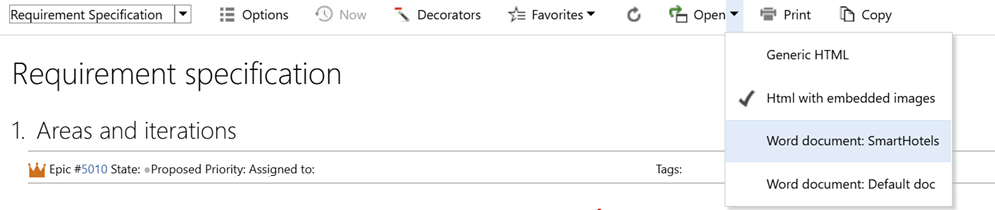
To save your export as a Word document, open the Open menu and select one of the uploaded Word document templates.
Creating your own custom Word template
You can simply take your ordinary Word document with your organization’s logo and styling and convert it to a Word template used by Enhanced Export PRO to create its Word document. Just follow this procedure to create your own template:
- Open an ordinary Word document that follows your organization’s standards and styling.
- At the location you want the export data to start, enter the text
HTML_CONTENT surrounded by %% on both sides like this.

- Save the document (as an ordinary Word document).
- Go to the Admin Hub for Enhanced Export PRO.
- Select the Library tab.
- Click Add new Library item in the left-hand menu.
- Give your template a name, ID, and scope.
- Click the Change item button.
- Upload the document.
- Click Save.
You are now done and can use your Word template in Enhanced Export PRO.
Document properties
You can use Word document properties to show data in the Word template that is populated at runtime. One example is the Title property. In the Word template, you can insert the Title property on the first page and in headers and/or footers.
When exporting to a Word document, the document title property is automatically populated by the Title element, if present; otherwise, the query name is used. By default, we populate the following properties of the exported Word document:
- Title
- Creator
- Created
- Modified
- Last modified by
Setting document properties in the template
You can create and set document properties in the exported document by rendering a META tag.
<meta name="word-properties" data-propName="Prop value" data-prop2Name="prop 2 value"/>
Setting properties at runtime
We also push all options as custom properties, enabling the user to fill values at runtime and have them exported as document properties in Word.
Creating a template that auto-updates TOC and fields on open
To automate refreshing the TOC and document fields, you need to add a macro named AutoOpen to the template.
Create an AutoOpen macro
Create a new macro, AutoOpen, in the template document (specific to the document, not All or normal.dotm).
Sub AutoOpen()
    ActiveDocument.Fields.Update
End Sub
Save the macro as part of the template document as a macro-enabled document (.docm). Upload the template document as a template document in Enhanced Export PRO.
Make sure that the documents you download from Azure DevOps are trusted.