 Query Tile PRO
- General
- Paid features
- Frequently Asked Questions
- Release notes
Business Hours
Introduction
Standard date-time calculations measure all 24 hours—but your dashboards shouldn’t. The Business Hours paid feature in Query Tile PRO calculates only the time your business is actually working, giving you accurate KPIs that matter.
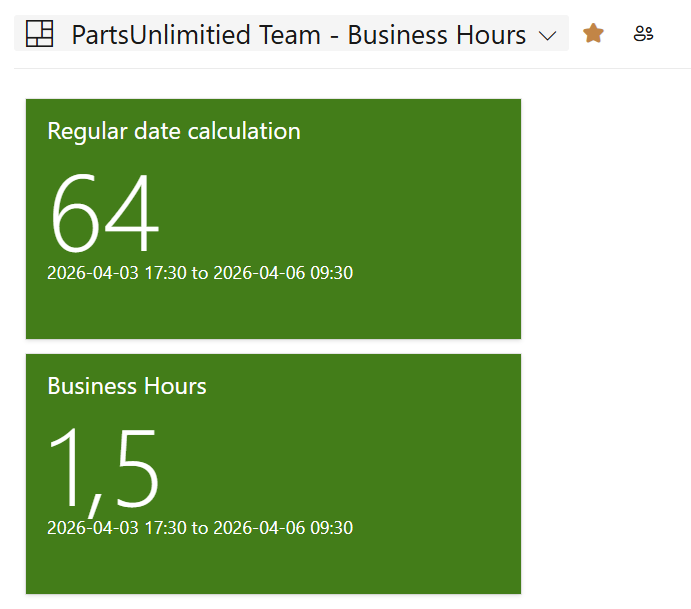
Without Business Hours, a ticket that arrives Friday at 17:30 and is handled Monday at 09:30 shows as “untouched for 65 hours”—when it’s actually only been 2 hours of business time. This distorts your metrics and masks real performance issues.
What You Can Do
With Query Tile PRO’s Business Hours feature, you can:
- Calculate actual business time between two points (not calendar time)
- Define your working schedule with custom business days and hours
- Account for holidays with configurable calendar imports
- Customize by department or location with different business hour rules
Real-World Example
Imagine a support ticket scenario:
- Arrives: Friday 17:30
- Addressed: Monday 09:30
- Calendar time: 64 hours
- Business time (with Business Hours 08:00-17:00): 1.5 hours
Without this feature, reports show a 65-hour delay. With Business Hours, you see the accurate 1.5 hour response time—which reveals actual performance and helps you set realistic SLAs.
How to use it
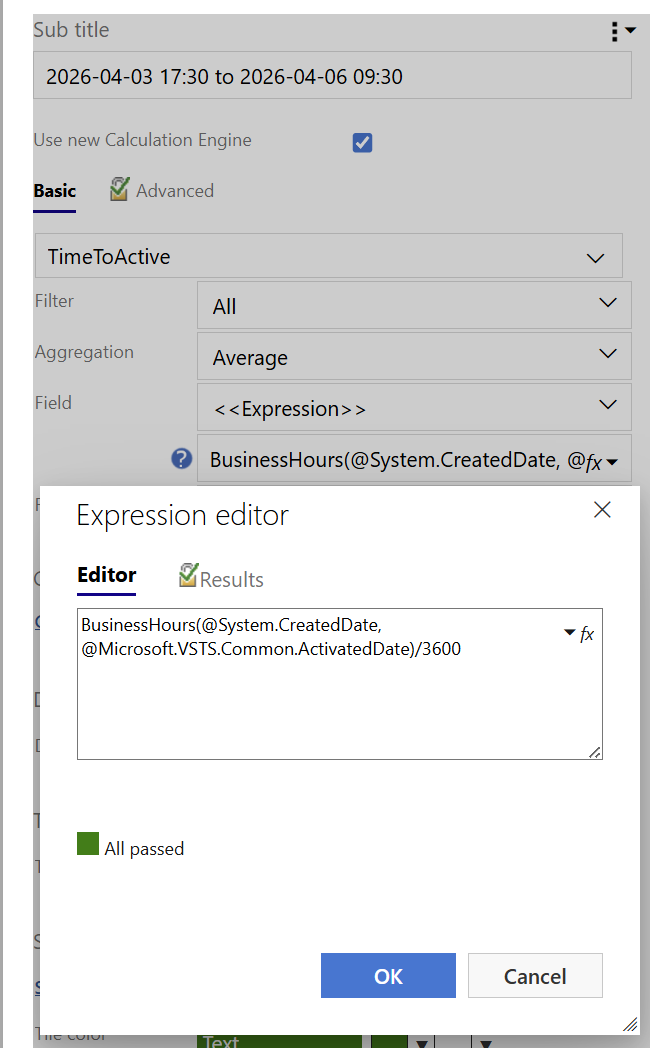
Simply replace your DateDiff function with the BusinessHours function in your Query Tile configuration.
How to configure your Business Hours
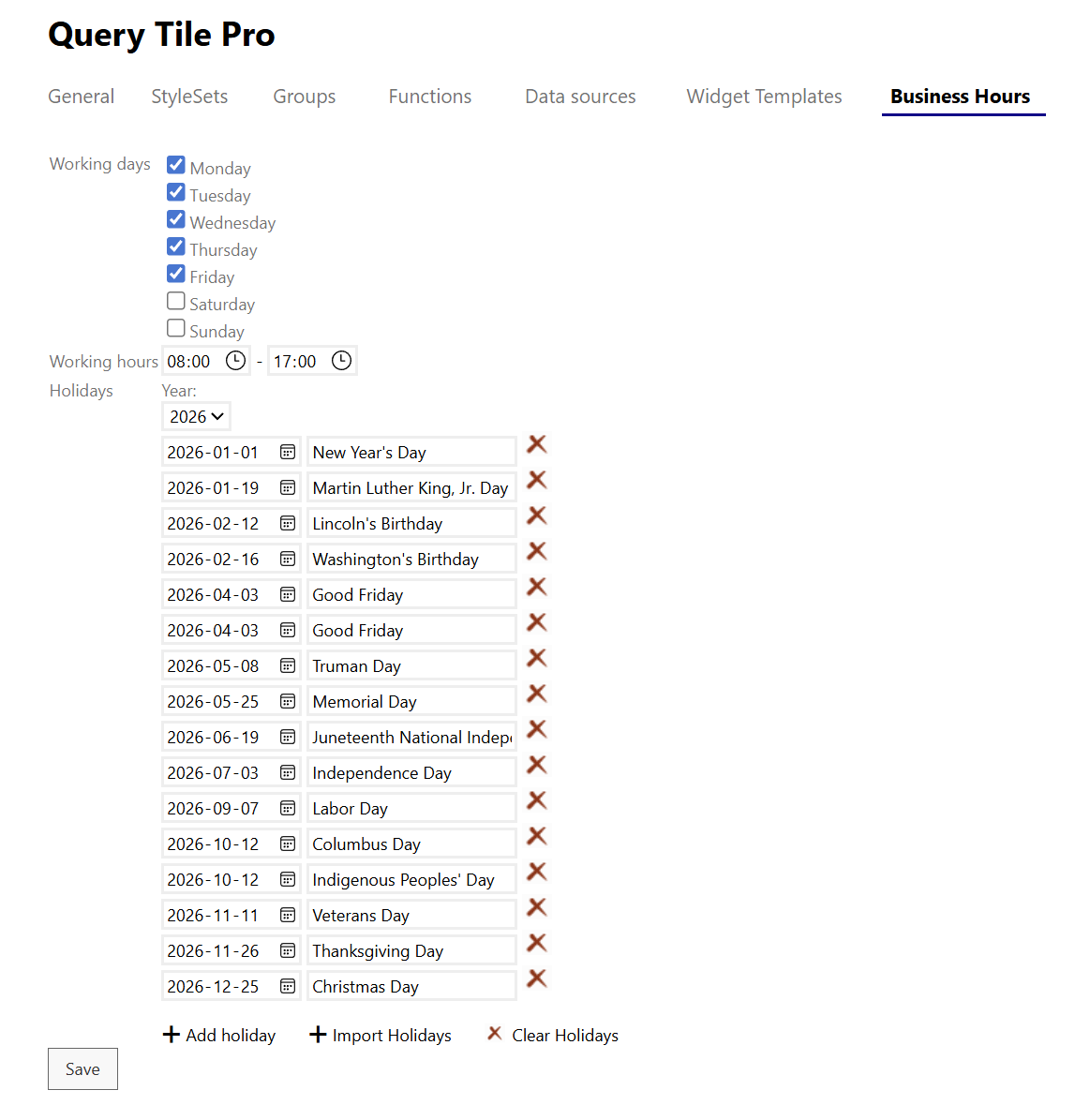
Business Hours settings are managed through the Query Tile PRO settings panel.
Step 1: Access Business Hours Settings
- Open a Query Tile PRO component
- Navigate to Settings > Time Calculations
- Toggle Business Hours to enable this feature
Step 2: Define Your Business Days
- In the Business Hours settings, select which days are working days
- Common configurations:
- 5-day week: Monday–Friday
- 6-day week: Monday–Saturday
- Custom: Select specific days (e.g., exclude certain days for rotating schedules)
Step 3: Set Business Hours
- Define your start time (e.g., 09:00)
- Define your end time (e.g., 17:00)
- These apply to all business days selected in Step 2
Step 4: Add Holidays
- Import the official holidays by clicking the Import Holidays button
- Manually adjust or add other days of closure as needed
Need More Help?
For detailed configuration examples or timezone-specific guidance, see Getting Started with Query Tile PRO or contact our support team on extension-support@mskold.com.